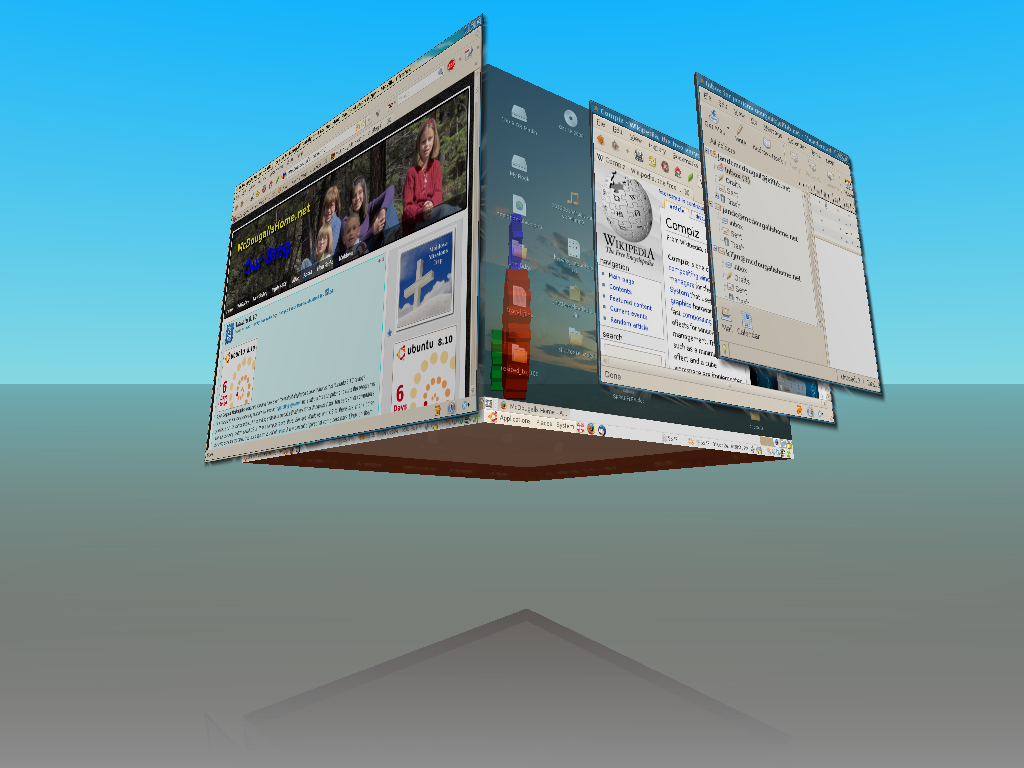
Ubuntu 9.04 – code named Jaunty Jackalope, was released on April 23. I am always (maybe too) eager to upgrade to the next version of Ubuntu as new features are always added, making it an even better operating system. Yes, for the uninformed, Ubuntu is a computer operating system. Your computer may run Windows or if it is a Mac, it may run OS X. My computer, along with millions of others runs the totally free and open Linux version called Ubuntu.
Typically, version updates are made right over the Internet. It will download a zillion files and update everything, taking, possibly, several hours to do. I read an article on some web site that I could download the distribution and update it from a burned CD. Since I had two computers to update, I decided this might be a time savings way to go.
Here is my experience:
I downloaded the Alternate Install disc over night. I popped the disk into my computer and it immediately detected that the disc had a distribution upgrade on it and asked if I wanted to “upgrade”. I said yes, and off we went. It then asked if I wanted to update any files that may be newer than on the disc, by connecting to the Internet and downloading them. If I selected “NO”, I could “simply” update my system later and it would pick up the needed files. I chose to do this as I figured it would get the system up an running the quickest.
Before I go into details, I must say that I have a co-worker that also runs Ubuntu. He chose to update from over the Internet. He said that he had to restart the process several times because it kept on stopping. It was probably because there were millions of others trying to do it at the same time. Also, it downloaded over a thousand files. It took a long time, but in the end, he said everything seemed to work ok.
Back to my update. As the update progressed, it asked several times about configuration files, and whether I wanted to keep the current ones or up date them. I had no idea what to do on these. One option was to merge them, which I did several times. I have no idea if that did anything. I kept getting an error saying the latest kernel version xx-xx-xx would not start. Oh, Oh. That is very not good. It came down to one of my choices in updating the grub menu.lst. After several errors, it came back and asked that question again. I chose “update to developers version” or some such thing. Yeah, the new kernel loaded.
The process finally finished and it was time to reboot. When it did, my 3D graphics did not work. Meaning Compiz was disabled. I tried to load a new Nvidia driver with not much luck. I decided maybe I needed to do that update that was mentioned earlier. I chose “update” and boom, it decided to download several hundred files. This was the part that I though I was avoiding. Once it downloaded them, I got a message saying that all the files weren’t downloaded, and suggested a “partial upgrade”. I chose to do that. I ran “update” again and it picked up more files, but this time the update process crashed when it was time to install them. After much head scratching and searching the Internet, and many hours passed, upon boot-up, I selected “recovery mode”, and selected a sub menu that said something about repairing packages. I chose that option. It recognized that there were updates, and it loaded them successfully. After that, my “update manager” seemed to work. There were many other users out there that were looking for the same answer.
My Nvidia drivers were still not loaded. It detected a new version of the driver, but when I tried to enable it, it gave me a message back that said it was previously enabled. So did I just disable it, or was it enabled? I went into the settings, and this time I was able to turn desktop effects on. But, the Compiz GUI was missing. I re-installed Compiz and I was able to turn everything back on. What a pain.
Somewhere in all of this, my screen locked up because the screen saver came on. When I tried to log back in with my password, it said my password was “invalid”. Oh, no. I clicked the “Switch user” button, reselected myself (which said I was already logged in) and it took my password correctly. After several more hours of Internet searching, I found that many other have had this problem even before the new version of Ubuntu. I eventually came up with the fix after digging into the depths of files that have never seen the light of day.
Before I started the upgrade process, I did a complete partition clone saved to an external drive. I also separately backup the home directory of my and my family’s accounts. I also went through and did screen shots of all the menus. I did this, because I had a past experience that failed and I had to reinstall the entire operating system, and I couldn’t remember all the different programs I had installed. This was a good idea, as I was soon in for a big surprise.
It seemed that everything finally came out ok, but I noticed that an icon on my menu bar was missing. It was for the search applet. I very much needed that. It indexed all of the files in my home directory, and could search for anything in a second. I have the “open clip art” collection on my drive which consists of thousands of pieces of clip art. There is no way to search this collection without the indexed search applet. The applet also categorized its results and actually displayed thumb nails of its results. A very handy thing for searching through clip art. The problem was, I did not even know what this little program was called. I could not even search for it on the Internet. It took another hour or so of time to finally figure that it is called “Tracker”. I reinstalled it. The configuration files were in place so it came back like it should – except, it kept saying there was an error and had to re-index. Oh no, maybe this is why it disappeared. It seems to be buggy. I don’t know what I will do without it.
Since this program was missing, I though I would check around and see if anything else was missing. Oh boy, was I in for a shock. I am very glad I took those screen shots. I printed them out and started comparing new menus with old ones. Here is what came of it. Almost all the old configuration files were still present, which made setup a lot easier.
- Tracker – missing. When reinstalled, it appeared to be buggy.
- Gnome Do – missing. Reinstalled. Old configuration files still intact.
- Firestarter the firewall would not activate. Reinstalled and it started up ok.
- Dropbox would not start up. I had to go to their web site and download and install a new version.
- Brasero disc burner. This was my favorite disc burner. It was missing. Reinstalled.
- VLC Media Player – missing, reinstalled.
- Gdesklets – missing, reinstalled
- BitPim – missing. Reinstalled. This program downloads and uploads pictures and info from our cell phone. It was a real pain to get it going originally. I have not been able to get it running yet.
- Childsplay – missing. Reinstalled. This is an educational children’s program.
- OpenOffice Database – missing. I selected the entire suite to be reinstalled. It found the pieces that were missing and only installed them.
- PyCrust – missing. Reinstalled. This is a Python programming language front end GUI
- DeVeDe – missing. Reinstalled. This is a DVD menu creator which I really like.
- Kdenlive – missing. This is a video editing program. I have been using Kino and Open Movie Editor, so I did not reinstall this one.
- XBMC – media player – missing. I didn’t use this much either so I didn’t reinstall it.
- todisc GUI – missing. Reinstalled. This is another DVD menu creator.
- My Sandisk Sansa MP3 player would not work. This took hours of research to figure out. When I plugged it in, it did not come up in “mass storage” mode that it should have. It also spit out an error message and apparently thought it was a camera. After pulling the last two hairs out of my head, I found a solution and deleted a file somewhere on the system and it corrected the problem. I’m sure that file was there for something though!
SO, so far I have been able to get everything back working except Tracker, and BitPim. What a very large head ache.
I love using Ubuntu, but with this experience, I can tell you it is definitely not ready for the masses. How would mom or dad ever deal with something like this? Also, many “Gurus” will tell you that you should always do a fresh install when there is a distribution upgrade. How ridiculous is that? I finally got my computers networked, sharing printers, and files. I’ve configured it to death to how I want it. How is the normal Joe ever supposed to wipe all of that out and start over? I can’t remember what I did yesterday, it would take months to get everything back to normal.
As I said before, my co-worker’s upgrade turned out fine. It just took a long time. But— not as long as mine did.
John